
Connecting AI to Google Drive can be extremely useful. Instead of uploading the same documents repeatedly, you can ask an assistant to find project files, compare spreadsheets, summarise documents or work across a folder.
The uncomfortable part is the permission screen.
If your everyday Google account can see years of client work, finance documents, staff files and private folders, connecting that account can give the AI a much wider view than the task actually needs.
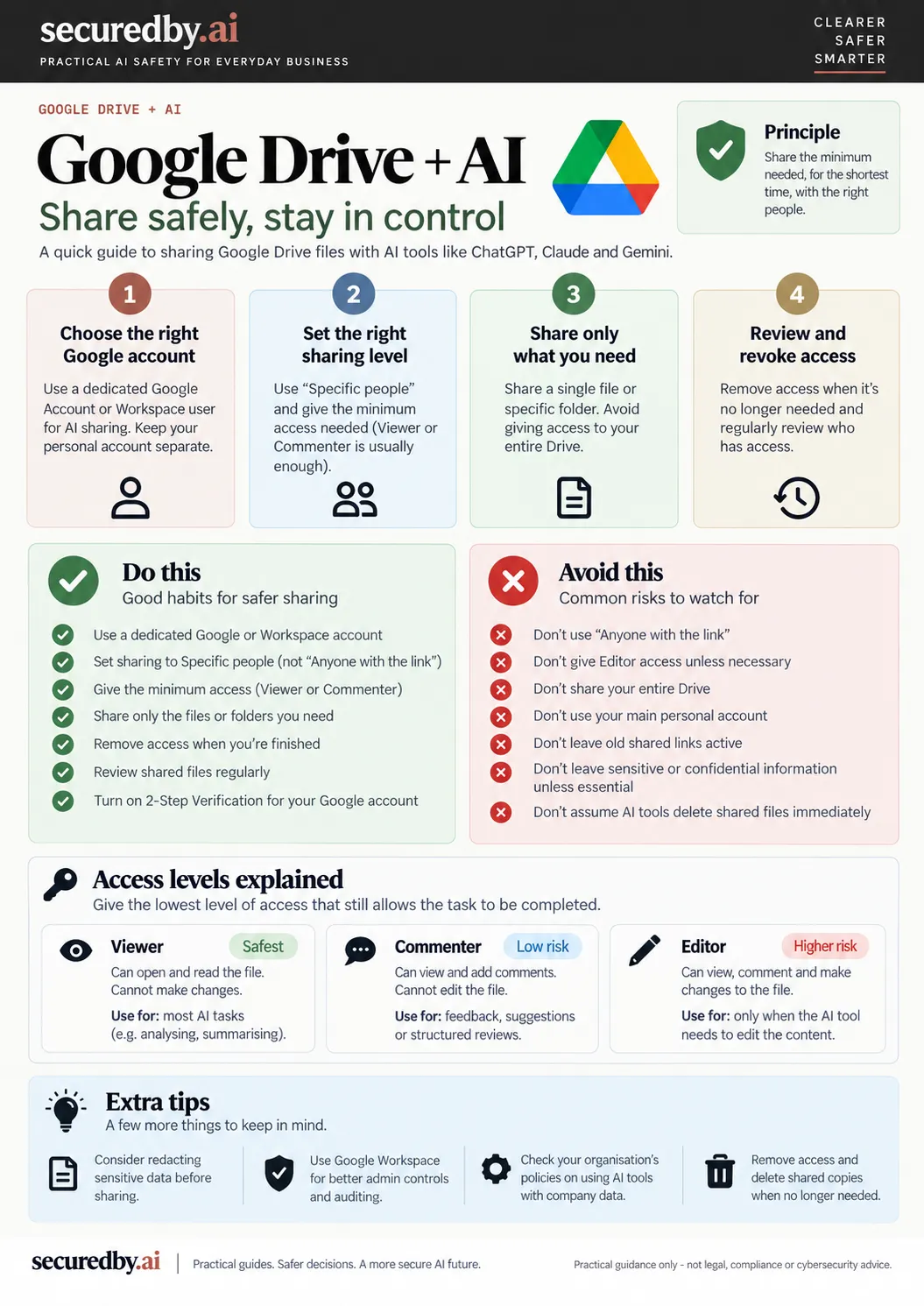
For a small business, there is a simple pattern that can reduce that exposure: use a separate managed Google Workspace account for AI, then share only the files or folders that account needs.
This pattern is broader than ChatGPT. The same least-privilege idea can apply when other AI services connect to Google Drive, although the exact permissions, admin controls and available actions differ between products. The ChatGPT-specific details below are labelled as examples rather than universal rules.
Why a separate account helps
An AI connector works through a Google identity. The important question is therefore not only what permissions the connector requests, but what the connected Google account can already access.
OpenAI's current Google Drive documentation says ChatGPT follows the permissions of the Google account you connect: it cannot use files that account cannot open. Its Google app data-control guidance makes the same point - an individual connection can access only content available to the connected account, subject to workspace settings.
That gives you a practical boundary.
Instead of connecting your normal work account, create a dedicated managed account such as ai@company.com. Do not use a personal @gmail.com address for company files simply to avoid buying or managing another Workspace seat. A managed account keeps the identity inside your organisation's normal administration, sign-in and offboarding process.
A dedicated user may mean an extra Workspace licence and another account to protect with MFA. That is an administrative cost, but it also creates a boundary you can understand and audit.
Before sharing anything into the account, sign in as that user and inspect what it can already see. A fresh account is not automatically empty if your organisation uses domain-wide sharing, Google Groups, Shared Drives or broad link settings.
Step 1: create a dedicated, low-privilege Google account
Use a normal managed Workspace user rather than an administrator account.
Avoid adding it to broad company groups that automatically grant access to large areas of Drive. Remember that Google Groups are often used as mailing lists and as permission groups, so a seemingly harmless membership can grant file access too.
Do not make the account a Workspace administrator simply to make setup easier.
Give it the same basic sign-in protection as any other business identity, including strong authentication and multi-factor authentication where your organisation requires it.
Then check My Drive, Shared with me and any Shared Drives before proceeding.
Step 2: make an AI working folder
Create a folder specifically for material you are comfortable making available to the AI, for example:
AI Workspace
Inside it, you might create subfolders such as:
- Marketing drafts
- Website content
- Approved client documents
- Research
- Internal templates
Keep the folder's general access set to Restricted, then share it directly with the dedicated AI account.
Google Drive allows folders to be shared with specific people and given Viewer, Commenter or Editor access. Files and subfolders inside normally inherit the folder's sharing state, so treat the contents of the shared folder as part of the AI-accessible area.
Also check for files shared more broadly with "anyone in the organisation" or through Google Groups. Those can become visible to the dedicated user even though you did not explicitly share the AI folder with them.
Shortcuts and copied files deserve the same attention. A shortcut can point the user toward another location, while a copy placed into the AI folder becomes a new item inside the AI-visible working set.
Step 3: start with Viewer access
For research, summarising, comparing and drafting, the AI often only needs to read the source material.
That makes Viewer a good default.
Google describes Viewer access as allowing someone to see the folder and open its files. Editor access is significantly more powerful: editors can open, edit, delete or move files within the folder and add new files.
If the job is "read these project documents and help me write a proposal", there is little reason to start with permission to change or delete the originals.
You can expand access later if a real workflow requires it.
Step 4: connect the dedicated account - not your everyday account
When the AI service asks which Google account to connect, select the dedicated AI account.
This is the step where it is easy to undo all the careful scoping by clicking the familiar account you normally use.
The Google consent screen may still use broad wording such as permission to view Drive files. In many integrations you are authorising what the app may do as that Google user, rather than choosing one folder in the OAuth screen itself.
That is why the dedicated identity matters. Do not abandon the low-privilege account just because the consent screen looks broader than the one folder you intend to use.
ChatGPT example: two separate controls
With ChatGPT, think about two permission layers separately:
- Google Drive permission - what the dedicated Google account can read or edit.
- ChatGPT app/action permission - whether ChatGPT is allowed to perform read actions or create/update actions through the connection.
A Viewer account should normally be paired with read-first app permissions. Enabling a create or update action in ChatGPT does not magically give a Google Viewer account edit rights; both layers still matter.
Step 5: test the boundary before using real client data
Do not assume the setup is correct simply because the permissions look sensible.
Create two harmless test documents:
- one inside the AI folder called AI should be able to see this
- one somewhere the dedicated account cannot access called AI should NOT be able to see this
Then ask the connected AI to find each document.
The first should be available. The second should not.
Also sign in directly as the dedicated Google user and check My Drive, Shared with me, group-derived access and any Shared Drives. Old shares and broad organisation links are easy to forget.
If the account can already see something you did not expect, fix that before using real client material.
What about Shared Drives?
Shared Drives need extra care because membership can grant access across a wider team-owned area. Google does support limited-access folders, and enterprise administrators may have more granular controls, but do not add the AI account as a broad Shared Drive member unless that is genuinely what you intend.
ChatGPT-specific note, checked 15 September 2026: OpenAI's current Library documentation says its initial individual Google Drive Library view includes My Drive and items shared directly with the connected account, while Shared Drives are not included there yet. Administrator-managed Google Drive connections have separate controls and can be configured differently.
That is a product-specific detail and may change. The general principle is more durable: check the actual connection you are using rather than assuming every AI-Drive integration behaves identically.
Step 6: remove access when the project ends
Scoped access should not become permanent by accident.
When a project finishes, remove the dedicated account from folders it no longer needs. If you stop using the integration entirely, disconnect the Google app from the AI service as well.
Be aware that an individually connected Google account and an administrator-managed workspace index can be separate things. Disconnecting one does not necessarily remove the other, so organisations using managed integrations should review both sides.
What this pattern does - and does not - solve
A dedicated account reduces the blast radius of a connector. It does not answer every privacy or security question.
Anything the AI retrieves is still processed under the AI provider's current terms and settings. Scoping Google Drive does not change the provider's retention, training, logging or connected-app policies.
You still need to consider whether the AI service is approved for the information, how the provider handles data, whether client or contractual rules allow the use, and whether generated outputs are reviewed before they are shared externally.
For the broader permission principle, see Too much power: why AI agents shouldn't have access to everything. For what may happen after information reaches an AI service, see What happens to your data after you send it to an AI?.
But this pattern solves one practical problem well: the AI does not need access to everything simply because your everyday account has access to everything.
For many small teams, that is a useful place to start.