You are signing up for a new AI writing tool.
The page offers email and password. Underneath is a larger button: Sign in with Google.
Using your existing work account can be convenient. You do not need to create another password, and Google does not give the app your Google password.
Then a second screen appears.
It may ask only for your name, email address and profile photo.
Or it may ask to see your Google Drive files, read your calendar, or send email as you.
Those are not the same request. The button looked the same. The grant is not.
The useful question is not "Is Sign in with Google unsafe?"
It is:
What did this app actually ask for?
Login and permission are two different things
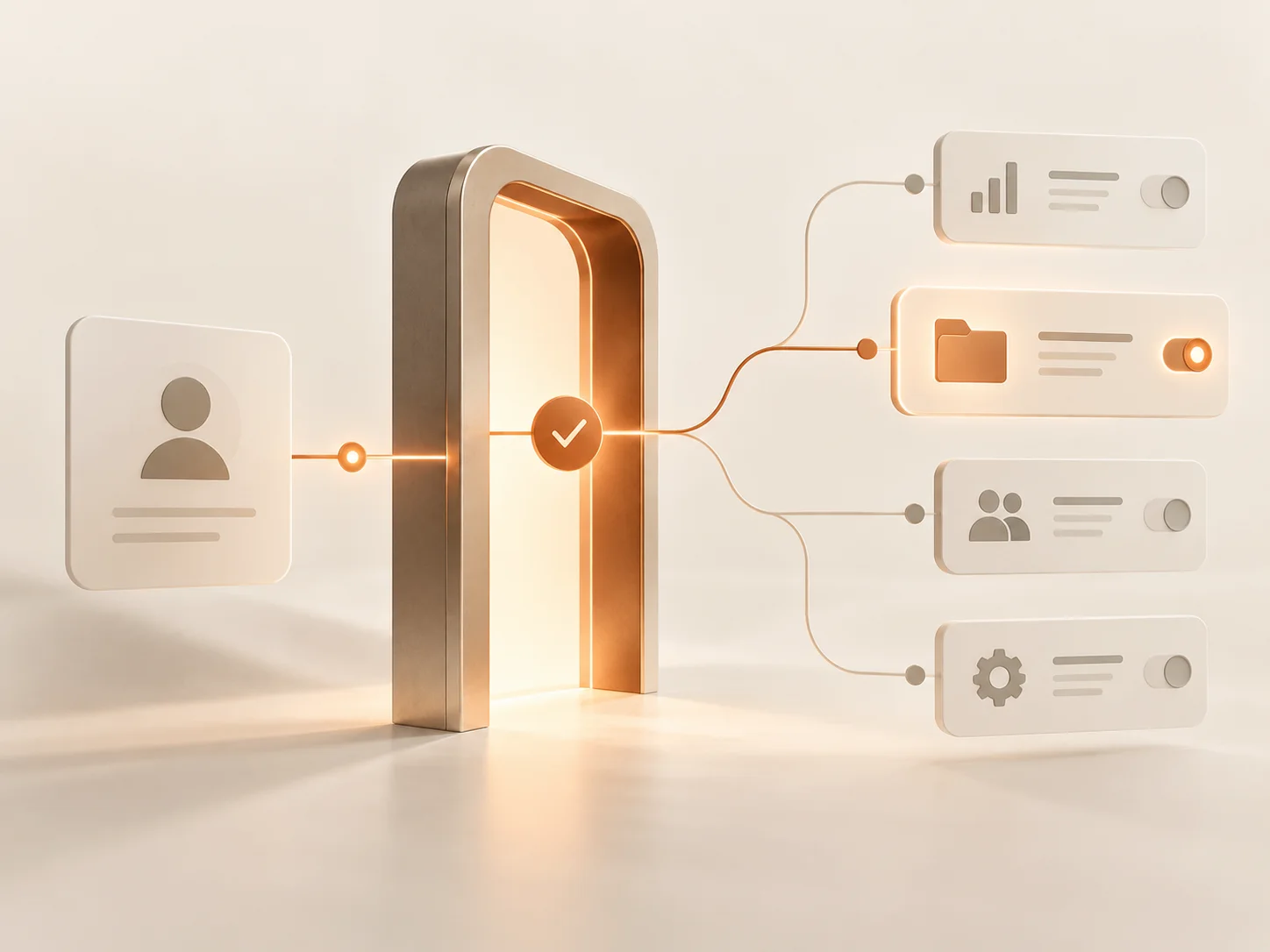
Sign in with Google can let a third-party app confirm who you are and receive basic profile information such as your name, email address and profile picture. Google does not share your Google password with the app.
Access to other Google Account data is a separate permission decision. If a product wants to work with Drive, Gmail, Calendar or another service, it must request additional access.
Microsoft follows the same broad pattern for work accounts. Signing in identifies you. Additional permissions can allow an app to read or act on mail, files, calendars or directory information. Some permissions can be granted by a user; others may require an administrator.
So a useful distinction is:
- Identity only: you have used your existing account to create or access another account.
- Additional permissions: you have also connected that service to other data or actions.
Do not infer the second from the first. Read the consent screen.
What the consent screen is actually asking
Treat the permission screen as part of the decision, not a speed bump.
Google's own guidance tells users to review what information and permissions a third-party app requests. Depending on the request, access can range from basic account information to the ability to view or modify data.
In plain English, ask four things:
- Identity only? Name, email and profile information needed for sign-in.
- Read? Can the app view mail, files, calendars or contacts?
- Write or act? Can it send mail, create files, change events or delete information?
- How wide? Is the request limited to one user's data, or does it involve broader organisation-level access?
You do not need to memorise OAuth scope names.
You do need to be able to explain, in normal language, what you are allowing.
"Read-only" is still access. It may be lower impact than permission to send, edit or delete, but it is not the same as no access.
Lower-risk and higher-risk grants
These are useful categories, not a complete catalogue. Apps phrase permissions differently, so the live consent screen is what matters.
Usually lower impact for simple sign-in
- name
- email address
- profile picture
- creating an account without another password
That is close to the basic purpose of Sign in with Google.
Worth pausing over
- access to Drive files
- reading Gmail
- reading or changing Calendar
- sending email as you
- creating, editing or deleting files
- access to contacts
None of these requests is automatically suspicious.
An AI tool that summarises files may genuinely need access to some files. An application that sends messages on your behalf may genuinely need a send permission.
The useful signal is mismatch: does the requested access make sense for the feature you are trying to use?
Higher caution in a company environment
Be particularly careful with:
- requests that affect many users or a broad set of organisational data
- administrator approval on behalf of an organisation
- tools that are experimental, short-lived or unlikely to be remembered later
Microsoft explicitly treats tenant-wide admin consent as a sensitive operation because it can grant an application access across an organisation.
That is not the everyday "Sign in" decision. It is an administrative one.
Personal Google and managed Google Workspace are different
On a consumer Google Account, you can review third-party connections associated with your account and remove access you no longer want.
Removing access stops that app from continuing to use the Google connection. It does not necessarily delete information the third party has already copied or stored. That is a separate question for the service itself.
A managed Google Workspace account adds another layer: your organisation may control which third-party applications can access Workspace data and what types of access users are allowed to grant.
That means the same AI tool may be:
- allowed for a personal account
- limited for a company account
- blocked entirely
- permitted only for basic identity information
Microsoft Entra also gives administrators ways to control user consent and review or revoke permissions granted to enterprise applications.
The practical lesson is simple: a work identity is part of the company's access boundary, not just a convenient username.
Use company-managed accounts for approved work services. Do not connect company Drive, mail or calendar data to an unapproved personal experiment simply because the login button is convenient.
The connection can outlive the experiment
This is one of the easiest things to forget.
Someone tries an AI service, grants access to Drive or mail, then stops using the product a few weeks later.
Stopping use is not the same as revoking the connection.
Depending on the service and the authorisation involved, a token may continue to work until it expires or is revoked. Google and Microsoft both provide ways to review and remove application access.
An unused app with live access is exactly the kind of thing that can become shadow AI: a real integration that nobody is actively supervising.
If the connection is no longer needed:
- revoke the access
- then consider whether any data already copied into the third-party service also needs to be deleted
Revocation deals with future access. It does not automatically erase historical copies held elsewhere.
Before you click Allow
Take ten seconds and ask:
- Which account is this: personal or company-managed?
- Is the screen asking only for profile information, or for Drive, Gmail, Calendar, contacts or another service?
- Is the permission read-only, or can the app send, edit or delete?
- Can you name the feature that needs each permission?
- Is this an approved tool for company data?
- If the request feels broader than the job, can you continue without connecting that service?
You will not always be able to choose a narrower permission bundle. Some products request a fixed set.
In that case, the choice is whether the access requested is proportionate to the value of the feature.
For Drive in particular, folder-level or account-level scoping may need to be handled through how files are shared or which account is connected, rather than through the Sign in with Google screen itself. Our guide to giving AI limited Google Drive access covers that pattern in more detail.
If someone already connected an unfamiliar AI app
Do not start by assuming something bad happened.
Start with the grant.
- Ask which account they used.
- Open the account's third-party app or connected-app settings.
- Find the service and read what it can currently access.
- Remove the connection if it should not remain.
- Check whether files, mail, notes or other data were copied into the service.
- If sensitive client, HR or other personal information was involved, follow the organisation's normal privacy or incident process.
For managed Workspace or Microsoft 365 environments, administrators may also be able to review the app centrally and prevent other users from granting the same access.
This connects directly to our guide on what to do when an employee connects an AI tool to work.
Make old connections part of normal housekeeping
There is no universal review interval that suits every company, but connected applications are worth checking periodically and during offboarding.
A simple review can include:
- remove third-party connections nobody still uses
- review apps connected to work mail, files and calendars
- check higher-impact permissions such as sending, editing or deleting
- make sure access is removed when staff leave or change roles
- prefer company-managed accounts for important integrations so access can be governed centrally
This is ordinary account hygiene.
It is also how you stop a one-week AI experiment becoming a forgotten connection six months later.
A proportionate way to think about Sign in with Google
"Sign in with Google" is not inherently a security problem.
In many cases, it is simply a convenient authentication method that avoids another password.
The important moment is when that identity request becomes a data or action request.
If you get into the habit of reading what the app wants, asking whether the permission matches the feature, and removing old grants later, you can keep the convenience without treating every consent screen as harmless by default.